
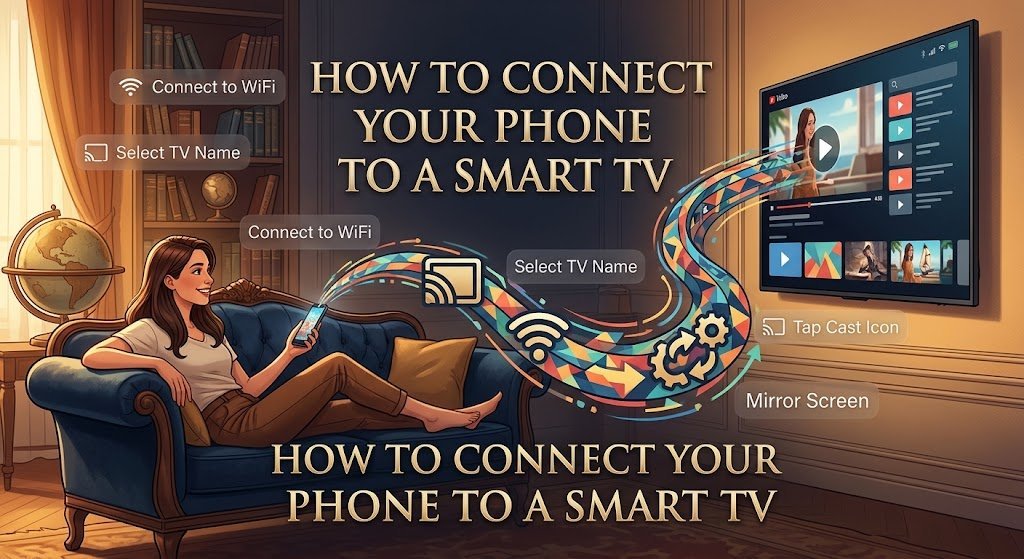
Connecting a phone to a smart TV sounds simple until the TV refuses to appear, the phone and television are on different Wi-Fi networks, the video plays on the phone but not on the TV, or the user cannot figure out whether to use casting, screen mirroring or an HDMI connection.
The good news is that you usually do not need complicated equipment. Depending on the phone and television, you can connect wirelessly through Google Cast, AirPlay or the TV manufacturer’s built-in screen-sharing feature. You can also use a wired connection when wireless options are unavailable.
The first thing to understand is that casting and screen mirroring are not exactly the same thing.
Casting usually sends supported content from an app on your phone to the TV. Screen mirroring displays what is happening on your entire phone screen. That difference matters because some apps support casting but do not allow their entire interface to be mirrored.
Check your TV before trying to connect
Start by finding out what type of smart TV you have.
A Google TV or TV with Google Cast can receive content from compatible apps. Google says the phone and TV need to be connected to the same Wi-Fi network for standard casting.
If you use an iPhone, your TV needs to support AirPlay 2, or you can use an Apple TV 4K. Apple says AirPlay can stream video and audio or mirror an iPhone screen to a compatible TV.
If you are unsure, open your television’s network or connection settings and look for features such as Google Cast, Chromecast, AirPlay, Screen Mirroring, Smart View or Wireless Display.
The exact name depends on the television manufacturer.
How to connect an Android phone to a Google TV
The easiest method is usually Google Cast.
First, connect your Android phone and Google TV to the same Wi-Fi network.
Next, open an app that supports Google Cast. Start the video or other content you want to watch.
Look for the Cast button inside the app.
Tap it and select your television from the list of available devices.
When the connection is successful, the content should appear on the TV. Google says the Cast button changes to indicate that the device is connected.
To stop casting, tap the Cast button again and disconnect.
This method is useful when you want to watch a video without keeping the entire phone screen displayed on the television.
Why your TV may not appear
This is one of the most common problems.
Check the Wi-Fi connection on both devices.
Your phone might be connected to one network while the TV is connected to another. Even if both networks have similar names, they may not be the same network.
Google specifically recommends making sure the mobile device and Google TV are connected to the same Wi-Fi network.
Also check whether the TV’s Google Cast function is enabled. Google recommends checking the Google Cast system app if casting is unavailable on Google TV.
Restarting both devices can also clear temporary connection problems.
If the TV still does not appear, check whether the app you are using supports Google Cast.
Not every application offers the same casting options.
How to mirror an iPhone to a smart TV
For an iPhone, AirPlay is the main wireless option when the television supports it.
First, make sure the iPhone and compatible smart TV are connected to the same Wi-Fi network.
Open Control Center on the iPhone.
Tap Screen Mirroring.
Select the TV from the available devices.
If the television displays an AirPlay passcode, enter that code on the iPhone.
Apple’s current instructions confirm that Screen Mirroring can display the iPhone screen on an Apple TV 4K or AirPlay 2-enabled smart TV.
When you are finished, open Control Center again, select Screen Mirroring and stop mirroring.
How to send only a video or photo from an iPhone
You do not always need to mirror your entire screen.
If you simply want to show a photograph, open the Photos app.
Select the photograph, tap the Share button and choose AirPlay.
Select the compatible TV.
Apple also supports AirPlay for streaming supported video and audio from an iPhone.
This can be better than screen mirroring when you only want the television to display specific content.
What if you have an Android phone and a non-Google smart TV?
Many television manufacturers provide their own wireless screen-sharing systems.
Look through the TV’s settings for options such as screen sharing, wireless display or device connection.
On the phone, open the quick settings panel and look for an option with a similar name. Some Android phones may call it Cast, Smart View or another manufacturer-specific name.
The exact steps vary by phone model, Android version and television.
If your phone and TV do not support a common wireless standard, a cable connection may be the more practical option.
What if the TV has no smart features?
You can still connect a phone to some televisions using additional hardware or a compatible wired adapter.
For wired connections, you need to make sure the adapter and cable support the video connection required by your phone.
A cable that only charges the phone will not necessarily transmit video.
This is why checking your phone model and the adapter specifications before buying anything can save you from purchasing the wrong accessory.
Why does the picture look bad on the TV?
A poor picture is not always caused by the phone.
Your internet connection can affect streamed content, while the original video resolution also matters.
If you are casting a low-resolution video, the TV cannot magically turn the source into a high-quality recording.
If the video constantly buffers, check the Wi-Fi connection and distance between your devices and router.
If the phone is displaying correctly but the TV picture is distorted, restarting the connection and checking the TV’s picture settings can help identify whether the problem is with the source or the display.
Why is there sound but no picture?
Some apps and services handle casting differently from ordinary screen mirroring.
A video may play correctly through a supported Cast or AirPlay connection while screen mirroring behaves differently.
If one method fails, check whether the app has its own Cast or AirPlay button and use that instead.
For Google Cast, Google recommends using the latest version of a Cast-enabled app.
What if the connection keeps dropping?
Start with the basics.
Make sure both devices are on the same network.
Move the phone closer to the Wi-Fi router if the signal is weak.
Restart the TV, phone and router if necessary.
Update the relevant app and check for system updates on the TV and phone.
If you are using a VPN, it may interfere with local device discovery in some circumstances. Apple specifically notes that VPN configuration can interfere with local networking required for AirPlay-related features.
Which connection should you use?
If you only want to watch a supported video, casting is often the simplest option.
If you want the entire phone display on the TV, screen mirroring is more appropriate.
If you use an iPhone and have an AirPlay-compatible television, AirPlay is the natural wireless option.
If wireless connections are unavailable or unreliable, consider a wired connection that is compatible with your specific phone.
The important thing is not to assume that every phone works with every television in exactly the same way.
A simple checklist when your phone will not connect
Before spending money on accessories, check these things:
1. Are both devices on the same Wi-Fi network?
2. Does your TV support the connection method your phone is using?
3. Does the app support casting or AirPlay?
4. Is casting or AirPlay enabled on the TV?
5. Are the phone and TV software reasonably up to date?
6. Have you restarted both devices?
7. Is your Wi-Fi connection stable?
These checks solve many of the connection problems people encounter.
Connecting your phone to a smart TV does not have to be complicated. Once you know whether you need casting, screen mirroring or a wired connection, the process becomes much easier to troubleshoot.