
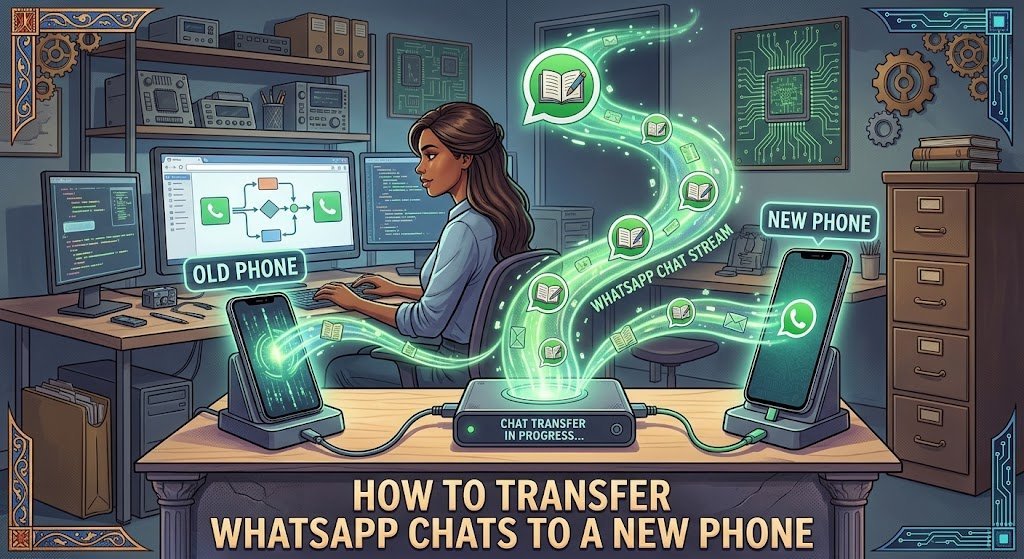
Getting a new phone should be exciting, but the process can become stressful when your WhatsApp conversations, photos, videos and important messages are still sitting on the old device.
For many people, WhatsApp is more than a messaging application. It contains work conversations, family messages, school discussions, documents, photographs and years of personal conversations. Losing that information while moving to a new phone can be far more frustrating than setting up the phone itself.
The good news is that WhatsApp supports moving an account and chat history to a new phone, including transfers between the same type of device and, in supported cases, between Android and iPhone. WhatsApp recommends backing up your chat history before starting the move.
The most important thing is not to rush into registering WhatsApp on the new phone before you have prepared the old one.
What to do before moving WhatsApp to the new phone
Keep the old phone available until you have confirmed that your important conversations and media are accessible on the new device.
First, make sure WhatsApp is working normally on the old phone. Open your conversations and check that the messages and media you care about are still there.
Next, make a fresh backup of your WhatsApp chat history where the available backup option on your device supports it. This gives you another recovery route if something goes wrong during the transition.
You should also make sure both phones have enough battery and are connected to a reliable Wi-Fi network when the transfer method you are using requires a network connection.
If you are keeping the same phone number, WhatsApp allows you to download the app on the new phone and register that number.
How to transfer WhatsApp chats from Android to Android
If your old and new phones are both Android devices, the process is generally straightforward.
Start by preparing WhatsApp on the old phone. Make sure your latest important conversations are available and that your backup is up to date.
Install WhatsApp on the new Android phone and begin the setup process. Use the same phone number associated with the WhatsApp account you are moving.
WhatsApp provides account and chat-transfer options for changing phones, and the exact choices presented during setup can depend on the devices and software versions involved.
Follow the transfer or restore instructions displayed on the new phone rather than closing the setup halfway through.
Do not delete WhatsApp from the old phone immediately after the transfer begins. Wait until the new device has finished restoring or transferring the information and you have checked several important conversations.
How to transfer WhatsApp chats from iPhone to iPhone
Moving between two iPhones can also be handled through WhatsApp’s supported transfer and backup options.
Before starting, open WhatsApp on the old iPhone and make sure your chat history is backed up or ready for the supported transfer method you intend to use.
Install WhatsApp on the new iPhone and register with the same phone number. WhatsApp says that its iPhone-to-iPhone options include account transfer, iCloud-based backups and chat transfer.
If you use direct chat transfer, keep the old phone available because WhatsApp may require it during the setup process, including scanning a QR code.
Once the transfer is complete, open several conversations on the new iPhone. Check photos, videos, documents and group conversations before considering the move finished.
How to move WhatsApp chats between Android and iPhone
This is where many users become confused because the two platforms use different systems.
WhatsApp supports chat-history transfers between Android and iPhone in supported circumstances. WhatsApp’s current guidance says users can transfer chat history from Android to iPhone and from iPhone to Android.
For an Android-to-iPhone transfer, WhatsApp’s guidance specifies conditions including using the same phone number, having the iPhone new or factory-reset, keeping both devices connected to power and Wi-Fi, and meeting the required Android and iOS versions. It also specifies the use of Apple’s Move to iOS app for that transfer route.
This matters because someone who has already completed iPhone setup may discover that the normal transfer route is no longer available without resetting the device.
Before starting a cross-platform transfer, therefore, check the requirements for both devices and back up anything already stored on the new phone.
What happens if you are changing your phone number too?
Changing phones and changing phone numbers are two different situations.
If you are keeping your existing number, you can normally register WhatsApp on the new phone using that number.
If you are also changing your number, WhatsApp advises changing the number on the old phone first if you want to keep your existing chat history. Registering the new number directly on the new phone without completing the number-change process can result in losing access to the old chat history.
This is an easy mistake to make, especially when someone receives a new SIM card at the same time they buy a new phone.
What if your old phone is broken or unavailable?
The answer depends on whether you have a usable backup.
If the old phone cannot be switched on, direct phone-to-phone transfer may not be possible. A backup can provide another route to restoring your conversations, provided the backup is available and you meet the requirements for restoring it.
This is why backing up before replacing a phone is much safer than waiting until after the old device has stopped working.
Why your WhatsApp chats may not appear on the new phone
One of the most common problems is assuming that installing WhatsApp automatically brings back every old conversation.
It does not work that way.
Your chat history needs to be transferred or restored through a supported method. If you sign in on a new device without having the necessary backup or transfer available, the expected conversations may not appear.
Other problems can include using a different phone number, signing into the wrong account associated with a backup, interrupting the transfer, or failing to complete the required device setup.
If a verification code does not arrive, WhatsApp recommends checking that you have entered the correct phone number and verification code and ensuring the old phone can receive WhatsApp notifications when required.
Do not erase your old phone too quickly
This is perhaps the most important practical advice.
After moving WhatsApp, open the new phone and check your most important conversations.
Look for:
- Recent individual chats
- Important group conversations
- Photos and videos
- Documents
- Voice messages
- Business conversations
- School or work information
Once you are satisfied that the information you need is available, you can prepare the old phone for disposal, resale or handover.
WhatsApp also recommends deleting chats from the old phone after a successful move to help protect your privacy. If you are giving the phone away, the device should also be wiped properly.
The safest way to move WhatsApp
The safest approach is simple: prepare first, transfer second and erase the old phone last.
Make a current backup where applicable, keep the old phone available during the move, use WhatsApp’s supported transfer process for your particular devices and verify the result before removing anything from the old device.
A new phone should not mean starting your WhatsApp life from zero. With the right preparation, your conversations and important media can move with you.