
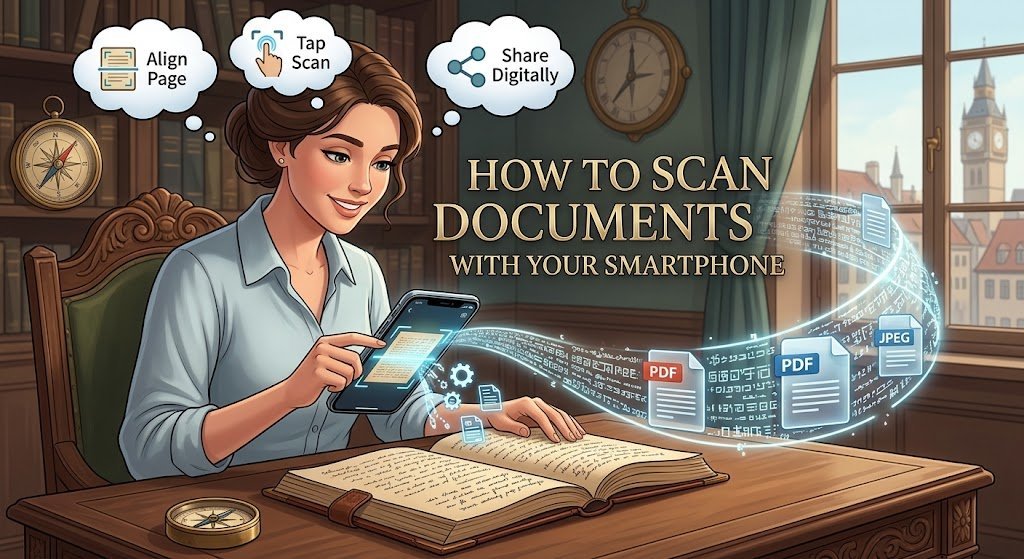
You do not need a traditional scanner every time someone asks you to submit a document as a PDF.
A smartphone camera can handle many everyday scanning jobs, including receipts, forms, letters, school documents, invoices and multi-page paperwork. The real challenge is getting a clean, readable document instead of a crooked photograph with shadows across the page.
Modern phones can automatically detect document edges, correct perspective and save multiple pages as a single PDF. On Android, Google Drive provides a built-in document-scanning feature that can save scans as PDF or JPG files.
On iPhone, Apple’s Notes app can scan documents and save them as a PDF inside a note. The Files app can also scan documents and save them to a chosen location.
Prepare the document before scanning
A few seconds of preparation can make the final scan much better.
Place the document on a flat surface.
Remove anything covering the page.
Try to use good, even lighting.
Avoid placing your hand or phone directly over the strongest light source because your body can cast a shadow across the document.
If the paper is folded, flatten it as much as possible.
For important documents, check that every page is present before you start.
A scanner can produce a technically clear image that is still useless if part of the document is cut off.
How to scan a document on Android with Google Drive
One of the easiest Android options is Google Drive.
Open the Google Drive app.
Tap the camera or scan option.
Point your phone at the document.
Google Drive can detect the document area and help crop the page.
Take the photograph.
You can then adjust the scan, crop or rotate it, change the appearance, clean up marks and add additional pages.
When the pages are ready, tap Done.
Give the document a useful filename.
Google Drive allows the finished scan to be saved as a PDF or JPG, and you can choose the Drive folder where the file should be stored.
This is useful for documents that you need to access later from another phone or computer.
How to scan several pages into one PDF on Android
If you have a five-page form, do not necessarily create five separate image files.
After scanning the first page in Google Drive, use the option to add another page.
Continue until every page has been captured.
Review the pages before saving.
Google Drive allows users to add, retake or delete individual pages during the scanning process.
Give the finished file a clear name such as:
University_Application_Documents.pdf
or
Business_Receipt_September_2026.pdf
A useful filename makes the document easier to find later.
How to scan a document on an iPhone
The iPhone has document scanning built into Apple’s Notes app.
Open Notes.
Create a new note or open an existing one.
Tap the attachment button.
Select Scan Documents.
Place the document in view of the camera.
The iPhone can automatically detect the page and capture it. You can also switch to manual capture if you want more control.
After taking the scan, adjust the corners if necessary.
If the document has multiple pages, continue scanning them.
When you finish, tap Done.
Apple says the scanned document is saved as a PDF in the note.
How to scan a document directly into Files on iPhone
If you want the scan stored as a file rather than simply keeping it inside a note, the Files app can also scan documents.
Open Files.
Tap the More button.
Choose Scan Documents.
Position the document in front of the camera.
Capture the page automatically or manually.
Adjust the corners if necessary.
Add additional pages if required.
Tap Done and select where you want to save the finished document.
This is particularly useful when you need to upload the document to a website, attach it to an email or send it through a messaging application.
You can also use Google Drive on an iPhone
If you use Google Drive rather than Apple’s document-storage system, you can scan from the Google Drive app on iPhone as well.
Open Google Drive and select the scan option.
Capture the document.
Adjust the scan.
Add additional pages if necessary.
Save the finished document to Google Drive.
Google’s current instructions confirm that the mobile Drive app supports document scanning on iPhone and iPad.
This can be convenient if you regularly move documents between an iPhone, Android phone and computer.
How to get a clearer scan
The biggest mistake is treating document scanning like ordinary photography.
Hold the phone reasonably steady.
Keep the camera parallel to the page when possible.
Make sure all four corners of the document are visible.
Use enough light to make the writing easy to distinguish.
Avoid glare, especially on laminated documents.
If the page contains small text, move the phone closer only after making sure the entire document can still fit inside the frame.
Do not crop too aggressively.
A perfectly straight scan is useless if it removes part of a signature, number or paragraph.
What to do when the scan is too dark
Move the document to a brighter area.
Natural light can work well, but avoid strong direct sunlight that creates glare.
If your scanning app provides filters, test them before saving the final document. Google Drive provides image filters and a cleaning function that can help remove visual marks from a scan.
However, do not use aggressive filters on important documents if they make faint text disappear.
The goal is readability, not making the page look artificially white.
What if the document has a shadow?
Shadows are especially common when scanning with a phone because your hand and the phone itself can block light.
Try moving the light source to one side rather than placing it directly behind the phone.
You can also put the document on a bright, flat surface and hold the phone higher above it.
If the scanning app offers automatic correction, check the final image carefully rather than assuming the software fixed everything.
How to scan a signature correctly
If a document already contains a handwritten signature, scan the page normally and make sure the signature is clearly visible.
Do not crop the signature away.
If you need to sign a digital document, some apps provide separate signing tools. On iPhone, Apple Notes supports adding signatures to scanned documents through Markup.
The important distinction is between scanning a document that already has a signature and adding a new digital signature. They are not the same process.
How to scan an ID or other sensitive document
Be careful when scanning identity documents, financial paperwork or other personal information.
Store the file in an account you control and avoid sending sensitive documents through unnecessary services.
Before uploading a scan to a website, check that you are using the legitimate website and that the document being requested is actually necessary.
After sending a sensitive document, consider where the copy remains stored on your phone, cloud account or messaging applications.
A good scan should be easy to read, but that does not mean it should be available to everyone who uses your phone.
What if the scanned PDF is too large?
Large scans can become a problem when a website has a file-size limit.
First, check whether the scanning app offers image-quality or compression options.
You can also remove unnecessary pages.
If the document contains photographs or large graphics, the resulting PDF may be much larger than a simple text document.
Avoid repeatedly converting a document between multiple formats because excessive compression can make small text difficult to read.
If an application gives you a maximum upload size, check the finished PDF before attempting to submit it.
How to make a multi-page document easier to use
A good filename is only the beginning.
Keep pages in the correct order.
Make sure no page is upside down.
Check that text is readable at normal zoom.
Open the completed PDF from another app before submitting it.
If the document is for a school, employer, bank or government application, compare the final PDF against the original pages one more time.
Pay particular attention to names, dates, identification numbers, signatures and other information where one missing character can create a problem.
What if the scan cuts off part of the page?
Retake the scan.
Do not assume the recipient can reconstruct missing information.
Make sure the entire page fits within the camera view and adjust the detected corners manually when necessary.
Both Google Drive and Apple’s document-scanning tools provide options for adjusting the scanned area.
If the automatic edge detection is wrong, manual adjustment is usually quicker than repeatedly moving the phone and hoping the software gets it right.
Smartphone scanning can replace a scanner for many everyday jobs
A smartphone will not necessarily replace a professional scanner for every situation, but it is more than capable of handling many everyday documents.
Receipts, school forms, invoices, letters, applications and other ordinary paperwork can often be converted into useful digital files without buying additional equipment.
The biggest difference between a poor scan and a good one is usually not the phone itself.
It is the process.
Use good lighting, keep the page flat, capture every corner, check the result and save the finished document in an organised location.
Once you get used to the process, a piece of paper can go from your desk to a clean PDF in a matter of minutes.